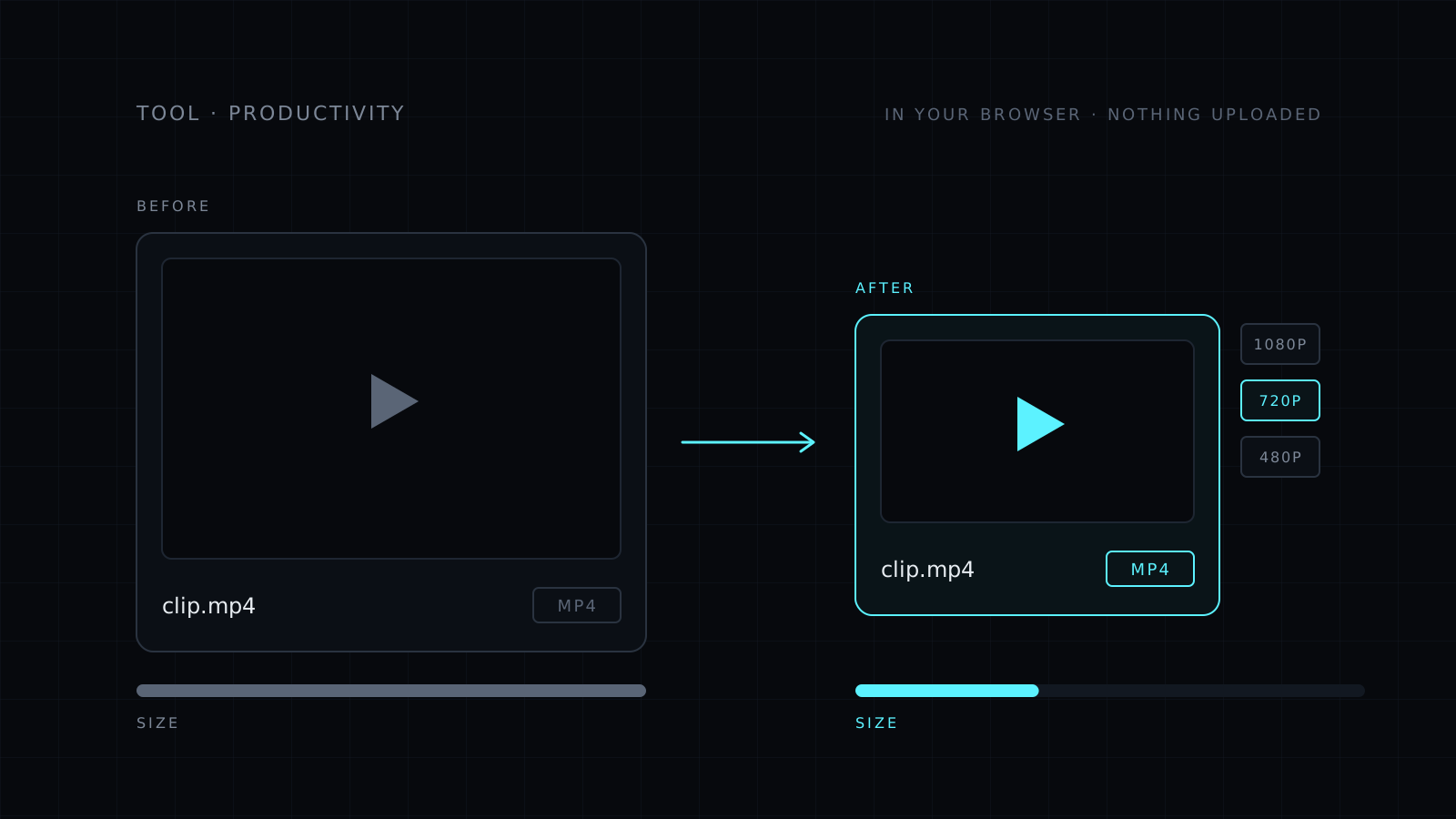
Compress Video is a tool to compress video files right in your browser. You drop a video, pick how small it should be, and download a lighter MP4. Your file never leaves your device: nothing is uploaded, nothing is stored, and it spends no credits.
Why compress a video?
Big videos get stuck. An email bounces, a chat app refuses the file, or a form hits its upload limit. Compressing makes the file smaller so it goes through, and it saves space on your phone or drive too.
How do I compress a video without losing quality?
Every compression trades some detail for size. The trick is to give up only what you won’t notice. Start with these choices:
- Level. Pick High quality when the picture matters most, Balanced for everyday sharing, or Small when the size limit is tight.
- Max resolution. Keep Original, or cap it at 1080p, 720p or 480p. A video watched on a phone rarely needs more than the screen shows, and a lower resolution shrinks the file a lot.
- Audio. If nobody needs the sound, remove it. A silent screen recording or a b-roll clip doesn’t need an audio track.
After compressing, the tool shows the size before and after. If it is still too big, try one step smaller. If it looks soft, go one step up.
What you get
- An MP4 file, the format almost every app and site accepts.
- Three levels: Small, Balanced and High quality.
- Four resolution options: Original, 1080p, 720p and 480p.
- An option to drop the audio.
- The size before and after, side by side.
Need a different format instead of a smaller file? The Video Converter turns a video into MP4, WebM, MOV or MKV, or pulls out the audio as M4A.
It needs a modern browser: recent Chrome, Edge or Firefox, or Safari 17 and later. The work runs on your device, so very large files depend on its memory.
Who it’s for
- Anyone sending a video by email or WhatsApp.
- People hitting upload limits on forms, sites and portals.
- Creators who want lighter drafts to share for review.
- Teams with footage that shouldn’t sit on someone else’s server.
FAQ
Does my video get uploaded to a server?
No. Compression runs entirely in your browser. The file never leaves your device and nothing is stored.
Which settings should I start with?
Balanced at 1080p is a good first try for most phone videos. Then adjust based on the size you see after.
What does it cost?
It comes with the Nexin library: Nexin Lite or Nexin Pro opens it, and it spends no credits.